Note: This article was written with iTunes 7 in mind. However, the principle holds for moving comparable versions (ie iTunes 6 Win to iTunes 6 mac) or for moving upstream (iTunes 6 to iTunes 7). Also, the procedure should work for moving your iTunes library from one computer to another, Mac-to-Mac, PC-to-PC, or any combination of the two. You can even use this method to clone an iTunes library from one computer to many others.
Apple’s market share has been growing dramatically. Many observers attribute that growth to the introduction of the Intel-based Macintosh as well as the so-called “halo effect” of the iTunes-iPod phenomenon. If you’re one of those users who have made the switch from Windows to Mac OS X because of said halo then you probably have already established an iTunes Library (with valuable hours spent creating playlists, rating songs and increasing play counts).
It would be a shame to lose all that hard work and data when switching platforms. Fortunately, it is a rather simple* procedure to move all your music to your new Mac while preserving all that precious, gooey metadata. Some guides say to export your existing library to XML and re-import it one the new machine. But that’s a bit complicated and it doesn’t really work. Since both the Mac and Windows versions of iTunes use the same file format for the library file, all you need to do is copy the library files from one computer to the other, while making sure iTunes doesn’t forget where the songs are located.
*This procedure is simple provided a couple conditions are met:
- Your music files, be them mp3, aac or other, are all stored on your main (C:) drive, not an external hard drive.
- iTunes manages all your music files (ie all you music files are stored in the iTunes Music folder).
-or-
You are willing to have all your music files moved into your iTunes Music folder on your new Mac.
You’re starting fresh; it might be a good time.
Preparing Windows iTunes for Export
click for larger size
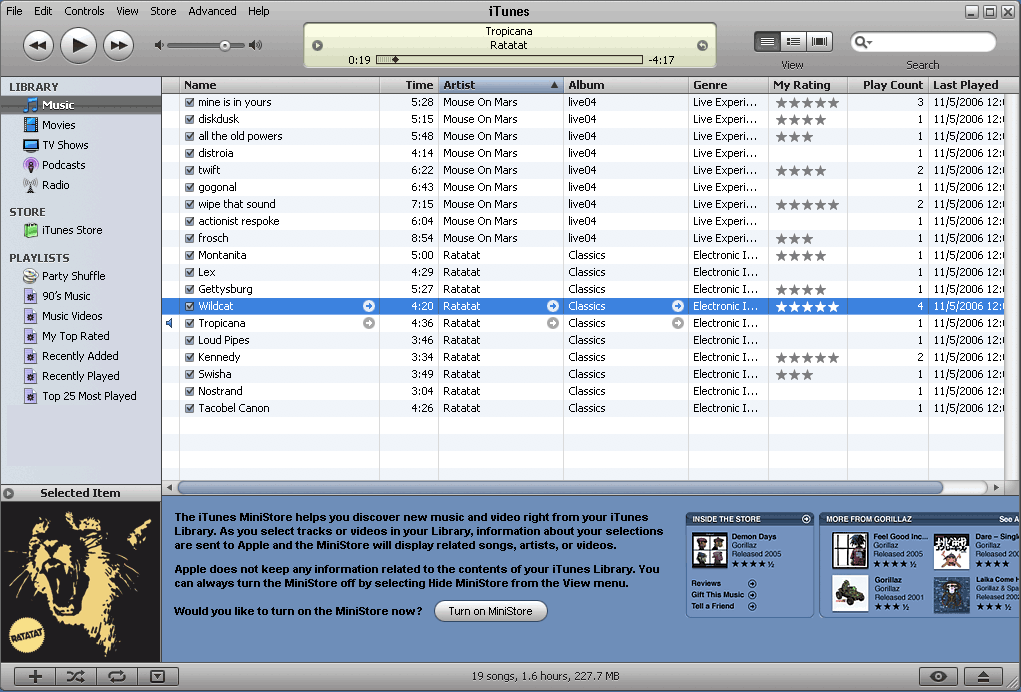
In this image, there is a simple Windows iTunes Library I created. It features a couple albums which have been rated and played.
- In Windows, open iTunes.
-
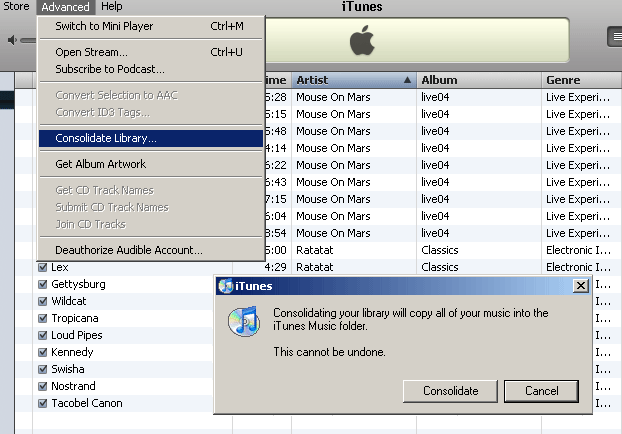
Select Consolidate library from the Advanced menu. This will move all the music files into the iTunes Music folder and sort them by artist and album. - Quit iTunes.
- Navigate to your My Music folder. It’s typically found at
C:\Documents and Settings\~username~\My Documents\My Music. - Copy the iTunes folder to the
Desktopof your new Mac. Depending on the size of your library and the method of transfer, this could take a while.
Ready your Mac and copy
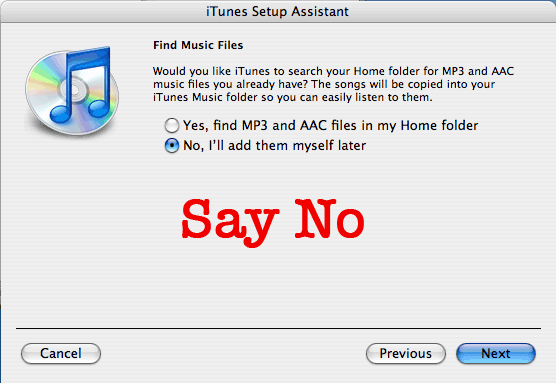
On your Mac, launch iTunes. If you haven’t used it yet, go through all usual set up questions. When iTunes asks to find your music, say “No.” You will be presented with a new, empty library.- Quit iTunes.
- Navigate to
/Users/~username~/Music/. - Move the iTunes folder to the trash and empty it.
- Move the iTunes folder that you copied from Windows from the Desktop into the Music folder, replacing the folder you just deleted.
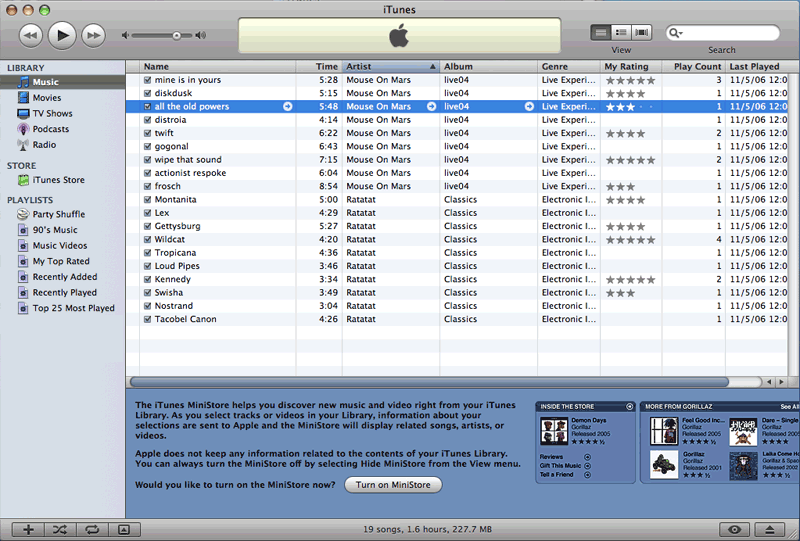
- Open iTunes again. You should see your familiar library with all the ratings, play counts intact.
click to see full-size
Exact copy of your Windows iTunes Library, ready for listening.
Enjoy.
P.S.- Theoretically, this procedure will also work for moving your iTunes Library from Mac OS X to Windows as well.
UPDATE Jan 30, 2007: Apple recently updated its instructions for moving a library using an iPod that includes similar instructions to what I’ve presented above. If you need a second opinion, give it a look.
There is a much simplier method that is relatively the same as above.
01. Backup the xml file on the windows computer.
02. Make sure that the Mac Itunes has no files inside the itunes folder
03. Make sure Itunes is closed on the Mac,
04. Paste the Windows .xml file into the Mac Itunes folder.
05. Change the paths as necessary using a text editor and batch find/replace.
06. Open Itunes and click on file -> import and select the xml file.
07. Sit back and wait for about a minute or two depending how big your library was.
08. Preview a song.
If the song plays you are successful. If the song does not play close Itunes and open the Itunes folder and delete all the files except the xml. Then open the xml file and make sure you correctly changed the paths.
I have done this twice so far making sure that I did not make any mistakes and both times it worked like a charm.
NOTE: Make sure that you setup your preferences correctly or else the music will be copied to the itunes music folder.
Click on Itunes -> preferences -> Advance and click on the general tab. And
remove the checkmark from Keep Itunes Music Folder Organized and the Copy
Music to Itunes muisc folder.
Reply
Andy Reply:
July 11th, 2008 at 5:22 pm
I can confirm that these steps work even when moving the library between two different versions of iTunes.
On my Windows machine I use Windows XP x64 (which cannot use any newer iTunes Version than 7.5) and on the Mac the current iTunes 7.7.
I exported the Library on the Windows Machine via File>Export Library and used the same File on the Mac Machine as Import.
I had troubles with the whole procedure until I removed all files in the Music>iTunes folder on my Mac that were created beforehand.
Now all my play counts, ratings and Playlists are on the Mac and look correct.
Thanks a lot for the great walkthrough!
Andy
Reply
Jeremy Reply:
August 1st, 2008 at 5:43 pm
thanks lot ralph!!! this helped alot
Reply
AgentSmith Reply:
October 30th, 2008 at 4:06 pm
The problem with this method is: You lose the “Date Added”-Value. And that’s not an option for me.
Reply
Andre Reply:
June 23rd, 2010 at 11:06 am
Is this really true? Its also not an option for me either. I need to keep absolutely all the original information that is already on my PC Itunes Library when it moves to the new Mac…
You would think Apple in all its brilliance would have thought of a simple way to do this already… 🙁
Reply
Bec Reply:
August 22nd, 2010 at 9:08 am
Hey,
I’m just wondering if it’s possible to do this using external hard drives? I’ve been using an external hard drive to play all my music through on itunes on my pc for a long time and now i’ve bought a mac i’d like to do the same. I thought it’d be as simple as loading the itunes file as a new library but it says the library is locked. 🙁
any help would be amazing!
Reply
does anyone have any info re migrating itunes from a mac laptop to a pc desktop?
Reply
tunequest Reply:
July 17th, 2007 at 6:53 am
Hi Jennifer, the above method should work for your situation. Just reverse the steps and copy the files from the Mac to Windows.
Reply
Unfortunately, it does not work for me. When I try to open the library coming from Windows, iTunes does not even give the option of selecting that file (it is ghosted).
Here is how I proceed:
1. Copy my iTunes dir from Windows to Mac using the SMB service (remote connection).
2. I replace the iTunes dir with the new one.
3. Start iTunes (with the option key) and opt for the selection of the library.
THe finder that pops up has the library file ghosted and hence I cannot select it. It’s the same thing with the xml file. However, Importing using the xml file works, even though it works, I loose all the play count and date played, etc…
Does anyone have any idea what could be wrong here ??
iTunes 7.3.2
Mac OSX 10.4.10
Windows XP Pro
Reply
mudhead Reply:
January 1st, 2012 at 2:44 am
why the hell do you need that information? “im so much of a music nerd with such a strong ocd complex that i need to know exactly how many times i played this song so that i know that i must not play it again for this extended period of time….” whats wrong with you mac people?
Reply
just from a quick browse of the above instructions, it sounds as if it should only be used if you have not yet downloaded any music into itunes on your mac. is this correct? what if i have music on my mac itunes already and only now want to add the music i currently have stored in my windows-based itunes. how do i “combine” the two folders?
thanks!
Reply
tunequest Reply:
August 30th, 2007 at 8:07 am
Hi reese. You are correct. These instructions are for moving Windows iTunes to a virgin Mac installation.
As for merging two existing libraries, I’m afraid I’ve never done that, so I can’t be of much help. Actually importing the songs from one library to another is just a matter of drag-and-drop; the difficulty comes in not losing the ratings, counts, etc.
There’s a program called TuneRanger that might do the trick if you have a network. SuperSync might also do it.
If those fail you, a google search brings up a number of pages.
Good luck.
Reply
reese Reply:
August 31st, 2007 at 2:18 am
hi, tunequest – i actually googled it after i posted and did find quite a few possible solutions… however, i’m intrigued by your mention of an easy “drag and drop” method. i have not yet created ratings or playlists and don’t mind losing counts, so this seems to be a quick solution. how would i drag and drop from one computer to another? would they need to be on the same network? or can i transfer my windows files to an external drive, hook it up to my mac, then drop the files into the itunes library there?
i’m so-so with computers but am pretty good at “following directions”… any details you might have on the proper procedure would be much appreciated (: thanks!
Reply
tunequest Reply:
August 31st, 2007 at 7:25 am
Oh, well if you don’t care about play counts etc, it should be very simple. You just have to somehow get all the music files from your WIN machine to your Mac. You can do it over a network (though it can be tricky to get the two O.S.’s to talk to each other–google it if you need help).
If you have an external drive, that would probably be the easiest way. Once all the mp3s are copied to it, hook the drive up to your Mac, launch iTunes and, if your Preferences are set to “Copy files to iTunes Music folder when adding to library” (i think that’s the default, but double check–it’s under the Advanced tab), simply drag the files to iTunes. iTunes will copy and sort all the music for you.
If “Copy files…” isn’t selected, manually copy the files to your mac before adding them to your library and you should be good to go.
Reply
how do you copy the folder onto your mac?
Reply
I did this from XP to mac leopard and it works perfectly fine. just remember to deleted the iTunes on the mac first.
Reply
If you migrate from Mac to PC you have to add the suffix “.itl” to the iTunes Library file. After that I was able to select my Mac ITL in Win Vista..
The other way round you have to remove the suffix, I presume..
Reply
What about purchased songs? Does the move work for those too?
Has anybody tried that?
Do I need to deauthorize the pc and authorise the mac to make it work? Maybe transfer licenses with the ipod? What if the music library can’t fit on the ipod? (as is the case for me)
Reply
tunequest Reply:
March 13th, 2008 at 10:41 am
If you will no longer be using the PC, then it is a good idea to de-authorize it. Otherwise, unless you’ve met your max 5 computers, it is not necessary to do so.
The Mac will ask for authorization the first time you try to play a Fairplay-purchased song, but you can authorize it before hand if you wish. Once your Mac is authorized for your account, you shouldn’t have to use the iPod’s “Transfer Purchased Music” function.
As for the library size issue, just make multiple trips. Copy half of your collection in one trip then do the rest in another. Just make sure your folder structure remains intact.
Reply
gterez Reply:
March 13th, 2008 at 10:57 am
Thanks so much for the swift reply, as I was planning to do it today 🙂 And thanks for posting this procedure in the first place.
I won’t be using the pc for itunes, so after I’m done transfering I guess I’ll deauthorize it…
Do you know if I’ll need to reformat my ipod to use with the mac? (it’s in windows format now, as bought). If not, is there anything to gain by changing it to mac format?
Thanks again!
Reply
tunequest Reply:
March 13th, 2008 at 11:19 am
Windows can’t recognize a Mac-formatted iPod, but the Mac does recognize a Windows formatted one, so you shouldn’t have any problem transferring the files.
Apple doesn’t officially support Windows-iPod-on-Mac, so once your files are copied, you might as well restore it to Mac format.
Reply
gterez Reply:
March 13th, 2008 at 11:38 am
Thanks again! 😉
lisagardelle Reply:
March 19th, 2008 at 4:20 pm
Sorry for maybe a dumb questions, but how do you change the ipod from windows format to mac format?
I licensed TuneJack for Mac to move all my songs and playlists off the ipod and onto the Mac and I think the format of the ipod could be why I’m not able to get the tunes off.
Thoughts?
gterez Reply:
March 19th, 2008 at 4:43 pm
You’ll have to use iTunes to reset it to factory defaults ON THE MAC. When the ipod comes back again it will be mac fomatted. But I guess in your case, you can’t do that…
lisagardelle Reply:
March 19th, 2008 at 4:55 pm
Thanks Gterez. I have the library still on the PC so maybe I could move the library per above instructions and reformat the ipod and then sync the mac with the ipod?? Sure sounds easier than I think it will be. Anyone interested in $$ to do this for me in the East Bay (SF) area?
I noticed the strangest thing after transfering from the pc to the mac & changed the ipod to mac format: some of the artwork is not displayed on the ipod!
It does happen on a number of albums and it’s not that the ipod treats the songs like they have no artwork: the titles etc. appear left aligned, not centered, but there is no artwork visible. The artwork “page” is also available, but blank. So it’s like it recognises that there’s some artwork but it’s “blank”.
Needless to say, the albums I’m talking about have artwork that was transferred from the pc, shows up correctly in iTunes, and is applied to all songs in them. The same artwork did show up in the ipod while it was windows formatted and synced with the pc.
Any clues anyone?
Reply
tunequest Reply:
March 25th, 2008 at 3:16 pm
I’ve seen this happen on my iPod, which has never been used on Windows. I have a handful of songs on one album where the iPod doesn’t show the art and aligns the text to the left. The rest of the album works fine and I haven’t figured out the difference between the files.
I tried replicating the behavior but couldn’t get anywhere. I didn’t put too much effort into it though because i actually liked the flush-left display.
Reply
gterez Reply:
March 25th, 2008 at 4:05 pm
I like it too tunequest! But I prefer the artwork better 😛
Alas, it seems the mac has its peculiarities too 🙂
Another issue, there’s one specific track that the mac refuses to “handle”. I thought it was lost in the transfer, and I do have it on another compilation, so I copied it, selected it when itunes said it couldn’t find the file and then proceeded to change the file info through iTunes to reflect its new place. The actual audio & track name & artist remained identical to those of the other file. I consolidated the library, checked the folder and everything was there.
The file disappeared again, when I restarted iTunes. it’s gone from the folder, not in the trash! Just this one track! 🙂
Anyway, I don’t really mind about these minor issues… I just thought I could post them here to bounce some ideas off others that have had similar experiences. iTunes on the pc had much more problems, the mac version is very stable and blazingly fast. I guess what I want to say is that it’s worth it to go mac 😉
Reply
Thanks! Your method worked like a charm, playlists, ratings, playcounts all restored!
Reply
ok, have read all the comments above and have a question. I have an fat 32 usb external drive that can be plugged into either windows pc or mac (when virgin?).my question is when i plug this into my mac, will the mymusic folder (which i assume is windows format) be readable/openable? (my itunes folder resides within a backup of my my music folder on the external)
Reply
Worked great for me on a new mac install.
Thanks alot
Reply
Just what I needed. Worked great. Thanks.
Reply
Kevin Reply:
October 19th, 2009 at 6:34 pm
Agree with Jim – works great!
Reply
So I have about 16GB of data to transfer, when I copy the iTunes folder to my Mac, will I have to use a drive that is large enough? I don’t want to spend money on an external for ONE copy & paste.
Reply
Deanne Reply:
January 3rd, 2012 at 5:50 pm
I would say yes, you would have to. try to figure a way to do it in parts?
Reply
Nevermind, just figured out that I could just use my 30GB iPod. 🙂
Reply
Thanks for the instruction. But: If I don’t have my music organized by iTunes in the Music folder, but on an external drive — what can I do? I tried to copy the whole iTunes folder, delete the library file, import the whole stuff, but there is always something missing (like the ratings, play counts or album artwork). Any ideas? I’d be most happy!
Reply
tunequest Reply:
July 12th, 2008 at 6:12 pm
It’s a little trickier to make the switch when your music in on an external drive because of the different ways that the the Windows and Mac operating systems keep track of where files are located.
I’ve never tried it myself, but there are some instructions here.
Reply
HELP: I did the steps exactly (there also on the apple support website) except when I open up iTunes on my new MacBook the music library is still empty! I’m running leopard btw instead of my old PC running XP.
Reply
Andy Reply:
July 17th, 2008 at 12:29 pm
Hi Jim!
(I assume you exported the library on your Windows XP machine for the next steps)
Did you reimport the previously exported library on your MacBook?
If you haven’t done so, the files won’t show up in your library at all.
Something else to consider might be different paths where your music is located, for example when your Windows iTunes Music folder was located on another drive. The exported library XML file then contains the Windows-type paths like file://localhost/C:/MyMusic whereas the location of the file has to be altered to make it usable for a Mac to read, like changing the location with TextEdit to file://localhost// .
I hope this might help.
Andy
Reply
Andy Reply:
July 17th, 2008 at 12:30 pm
The last line should read:
…whereas the location of the file has to be altered to make it usable for a Mac to read, like changing the location with TextEdit to file://localhost/mynewdrive/mynewfolder .
Reply
Laurie Reply:
December 6th, 2008 at 6:26 pm
After working though all the steps and not being able to see my songs in Library, II finally used “Add to Library” under File in iTunes – chose the file all my songs were in (users>Music>iTunes) and it worked.
Reply
tunequest Reply:
July 17th, 2008 at 1:49 pm
Hi Jim, you may also want to try manually selecting your transfered library file. If you hold down the Option key when starting iTunes, you can select the library file you want to open. iTunes will continue to use that library until you select a different one using the same method.
Reply
I’m new at all this how does one copy the music file from the windows to the mac desktop?
Reply
Deanne Reply:
January 3rd, 2012 at 5:51 pm
A large usb or external port, or wifi sharing.
Reply
I have gotten all my metadata (playcount, date added, rating, playlists) into my new macbook from my old pc, however the sons will not play and each of them has a small icon that looks like an airport or wireless icon in front of them. any suggestions?
Reply
Deanne Reply:
January 3rd, 2012 at 5:52 pm
Is it like an ‘!’ in some kind of circle?
Reply
tried it and no luck! i had already migrated my files over from an external HD and added them to itunes library, but then deleted everything as you recommended. Redid the job via network (all 70 G of it–took 8 hours!) and itunes does not recognize it–opens up an empty library. any advice?
Reply
Suppose I got more stuff in my iTunes on the old machine than will fit on my iPod – can I copy chunks over one load at a time? I’m going from a PC to a Mac
Reply
BTW–the batch find-replace of the itunes library.xml worked like a charm. if the ipod doesn’t have enough room, networking may be easier…
Reply
k-man Reply:
September 26th, 2008 at 10:26 am
The old machine dying – networking is dead. I’m thinking the easiest/cheapest thing to do is copy itunes over in chunks on the iPod (30G). Not fast, but hopefully reliable. Think it will work?
Reply
Attempting to move itunes music from an Windows formatted external hard drive to a Mac but the Mac does not recognize the drive. What gives? Also, if I cannot transfer from external drive, can it be done by connecting the windows-based laptop to the Mac? Just unsure of what wire to utilize. Thanks and appreciate the help.
Reply
thanks. this worked perfectly.
Reply
HELP…..I BEEN TRYING TO MOVE MY ITUNES FROM A MAC(G4) TO A WINDOWS (VISTA) CAN ANYONE GIVE ME A STEP BY STEP?
please
Reply
It took about 5 hours to figure out how to move my iTunes from my old Windows XP system to my new Mac Pro.
My iTunes music folder was not in its original location because it was too big for my system disk, and on my Mac, I wanted my music folder on a drive other than the system drive to avoid the same problem.
The above instructions were close, but in my case, after consolidating the music to one location, I noticed that the library files were still located in My Documents\My Music\iTunes
I found success when I did the following:
1. Copy the music files from their directory (such as F:\iTunes) to the new location on the Mac (such as /data/music/iTunes)
2. On the Mac, open iTunes holding the option key and selecting the option to create a new library. I chose the normal place, which was Dave:Music:iTunes
3. I deleted all of the files from Dave:Music:iTunes
4. I copied over all of the files from My Documents\My Music\iTunes (except for one hidden file named sentinel)
5. On the Mac, I edited iTunes Music Library.xml, replacing all instances of the old file location with the new location of my music directory. For example, on the PC version, it was file://localhost/D:/iTunes/ and the new location of my files is file://localhost/Volumes/data/Music/iTunes/ (don’t forget the “Volumes” part)
6. Started iTunes and it immediately updated its list of music.
Reply
alan Reply:
October 14th, 2009 at 9:22 am
Thanks Dave – worked after many hours of torment!
I was using win xp – mac osx 10.6
itunes 9 on both
Thanks also to the original poster, but as i was using an external HDD from the start i had the initial problem like Dave that my itunes library and artwork files were stored in My Documents/My Music/iTunes/
the last thing to do was File; Library… Import Playlist…
for some reason they have removed the import library option in itunes 9 but it seems to do the job!
still it doesn’t excuse the fact that the whole process was really tricky and i’d imagine that 90% of computer users would struggle with it – whats with that apple??
I nearly had it before i fond this sight but this defo helped alot. thanks guys.
Reply
SPOT ON!
I transferred from Windows XP > FAT formatted external HDD > Mac OS X 10.5.6 and it worked perfect! Followed all you steps.
I don’t understand why people are messing around with files must be older version OS X I guess.
My first step was to de-authorize both the PC and MAC. 30 gig 1 hour.
Though, I wasted 2 hours searching the internet and saw a variety of ways. None of which I tired due to lack of knowledge of text editors.
Thanks again you restored this newbies faith in user friendly Macs.
Reply
Ok, so here’s my problem. I recently came over to an iMac from a PC Laptop. I had all my files on an external HD with iTunes pointing to the external for my library.
I took all of the files from the external and dumped them in the iTunes folder on my iMac (the folder structure was handled by iTunes for organization on both PC and Mac) and then added those files via drag-and-drop into iTunes on the Mac. I then took my .xml files from the PC and dumped them into the Mac.
So far so good. All of my playlists transferred, all of my play counts, dates added, etc transferred without flaw. The issue is this, some of the files are showing up as the “exclamation point” or as not located by the Mac. The files are most certainly on the machine, but the path is broken and the Mac is unable to locate it. My library is 21,000+ songs, and I would say that maybe 10% of the tunes show up as “not located”. The fix is easy enough if it were only a few songs, you click on it, accept the offer to locate the file, use the “search” bar to locate and point iTunes in the right location, however, being that we’re talking about over 2,000 songs to do this to, it’s a bit of a pain.
Does anyone know of a quick solution? I’d really like to see if there’s an easier way before I spend hours going through my entire library like that. As I said, it’s a sporadic thing. There doesn’t appear to be any rhyme or reason (that I can tell) as to why some songs can’t be located. I want to avoid having to add my entire library again because i would then lose all the metadata info, along with having 20000 duplicates.
Help….Please 🙂
Reply
Matt Reply:
May 25th, 2009 at 12:08 am
Damn, dude. You mirror my situations exactly… I’ve been up all night trying to make it work. F****** ANNOYING.
You’ve probably fixed it for yourself by now… by when I get mine sorted out I’ll reply on here anyway
Goddamnit, Apple. Make it easier, please.
Reply
Well Matt…here’s what I did. Basically, it wasn’t the entire library that was doing this, as I stated in the original post, but about 10% of the songs. I tried looking for a logical reason why certain songs were acting this way and others weren’t, and I couldn’t come up with anything. What I ended up doing, is cutting my losses by reimporting my entire library….but the beauty with the iMac (at least in my experience) is that all the songs that had locations defined, did not duplicate or lose their metadata info. The songs that had exclamation points (or no location info) were duplicated. I then went into the menu and hit the “Show Duplicates” option and deleted all the exclamation files. I did lose the play count/skip count/last played/etc…info for the ones i deleted, but like I said, it was only about 10% of my library, and it was worth it if it saved me 10 hours of locating those files.
hope this helps.
Reply
I’m going to ask a stupid question so I don’t ruin my new Mac by making assumptions. I am assuming I need to physically connect the 2 computers (I will be going from a Compaq laptop to a Macbook) with a USB connection to transfer my i tune files. Is this correct? The instructions don’t actually say to connect the 2 computers. Thanks in advance!
Reply
Is there anyway to transfer an itunes library from an external hard drive. The majority of my music is stored on the external hard drive – the library is quite extensive and is in Windows format, but would like to move it all to my Mac.
Any ideas??
Reply
I was wondering if consolidating the library on the pc first is a necessary step? I already have a back up of my music directory, so i just dumped it on my macbook desktop. I followed the instructions and the files show up but all of them have the exclamation mark. However, on the xml file, I changed the file location from windows to mac and it shows the correct location, but just doesn’t play? Does anyone know of a fix or shed some light on my situation? I’d greatly appreciate it.
Reply
Worked beautifully first time around! Thanks SO much! I was really worried about losing all my music ;O)
Reply
…B.E.A.U.T.I.F.U.L!!!! Thanks a lot for the description above, everything worked out just great. Very easy and efficient way of getting the job done. Thanks very much.
Reply
I can’t consolidate my iTunes library cause my PC is outta space. How can i still do the move successfully WITH an external harddrive? HELP!
Reply
So i recently just got a macbook and i backed up my itunes library from my pc. i inserted the disk into my macbook and tried dragging it into my itunes library and it says that it can’t read the disk. help please!
Reply
I have the same question like Brittany. Will it work if my iTune was back up in Windows XP format on DVD and restore it on a new MAC? Anyone could help?
Reply
i dont get how u just drag it from one computer to another???
Reply
Just followed your instructions to great effect! One thing changed in the menu since you wrote this, on the PC in iTunes: ‘consolidate files’ is under File > Library > Organize Library.
After all your instructions, moved files. On mac created ‘iTuned_BAK’ and put the existing iTunes contents in there just in case I needed them later. Then moved my PC’s iTunes folder in to Music (as instructed). At first it didn’t work, it said the .itl file was from a newer version of iTunes. I did a check for updates, latest iTunes, restart, opened iTunes – MAGIC, it’s all there.
This actually seems A WHOLE LOT easier than the XML method mentioned by a commenter. And I know how to code…
Reply
hi i have trouble understanding what you mean by: changing the paths. please walk me through it step by step. i would really appreciate it.
my library turned up but nothing would play as it said the original files could not be located! HELP!!
Reply
Thanks for your article. Was a big help for me to transfer my music. Thanks very much.
Reply
I case you want to migrate your iTunes library the other way round: from Mac to PC, this is how
http://www.from-iphone-to-itunes.com
Reply
perfect!
PC-MAC iTunes10.1
thanks a lot
Reply
A program does this free, it’s called Tune Swift and I found it here http://www.copytrans.net/copytranstuneswift.php
Reply
John Reply:
June 1st, 2011 at 6:14 pm
I was going to use it, but when it wanted me to open up the firewall just to install it, I balked. I went ahead and followed the original directions, going from Windows iTunes to Mac iTunes, including replacing the path in the XML library file. Worked great and preserved all my data, lyrics and artwork, including some I added myself.
Reply
I just used the original post method and thank the lord it worked perfectly. So pleased!
I was moving my iTunes library from version 10.2.1.1 on my Windows Vista laptop to the new (March ’11) MacBook Pro.
I also own an iPhone 4 which is synced to the Windows iTunes, yet after using the posts method I synced with the newly working iTunes on my MacBook and all is eactly as it should be!
Hooray!
Phil
Reply
You can also use a small program called tuneswift.
It is the easiest and fastest program to transfer iTunes from PC to Mac.
More info here:
http://transfer-itunes-to-new-computer.blogspot.com/p/how-to-transfer-itunes-from-pc-to-mac.html
Reply
Thanks for the link, ruslan:
http://transfer-itunes-to-new-computer.blogspot.com/p/how-to-transfer-itunes-from-pc-to-mac.html
that worked like a dream!
Reply
This advice is still good in 2015, with iTunes 12. You don’t need any 3rd party apps to move your iTunes from computer to computer, whether they’re Windows and/or Mac. That said, I suggest running Song Sergeant to look for any missing/orphaned/duplicated songs that you may have inadvertently ended up with. It’s not a free app but you can look for problems for free, and it will reunite missing/orphaned song files for free too.
Reply